
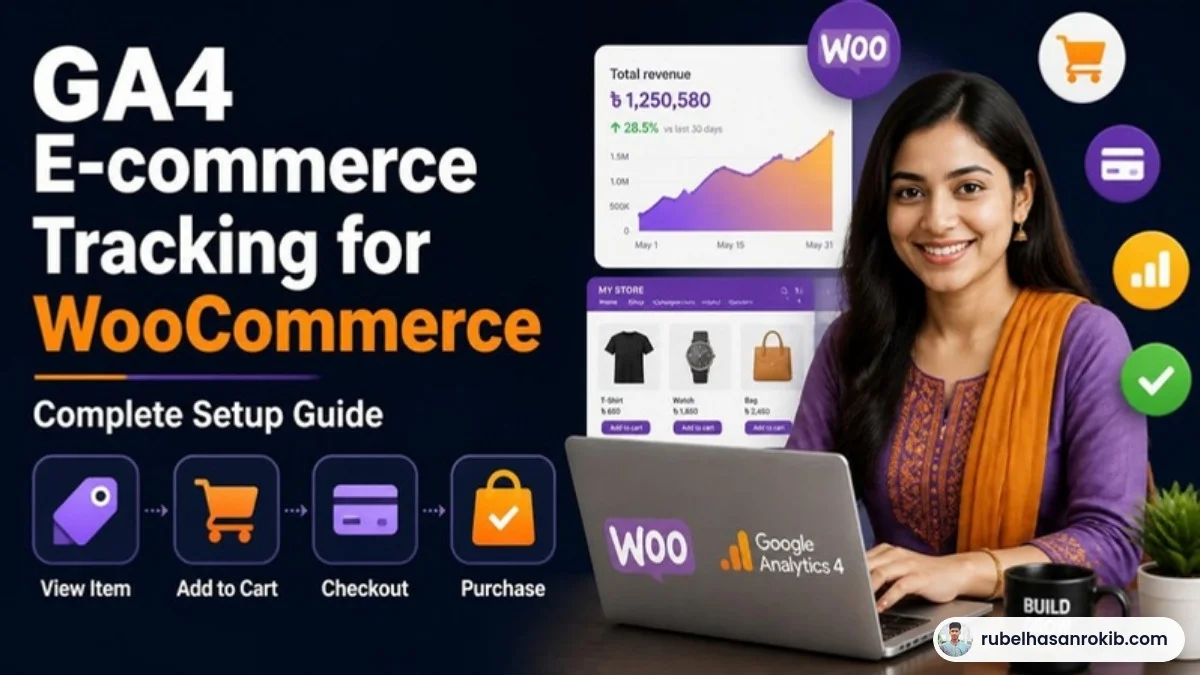
WooCommerce powers a huge number of online stores in Bangladesh, but most of them only track page views in GA4. Without e-commerce events, you cannot see which products sell, where people drop off in checkout, or how much revenue each channel brings.
This guide shows how I set up GA4 e-commerce tracking for WooCommerce with Google Tag Manager, and how to check that revenue in GA4 matches your real orders.
Quick Answer
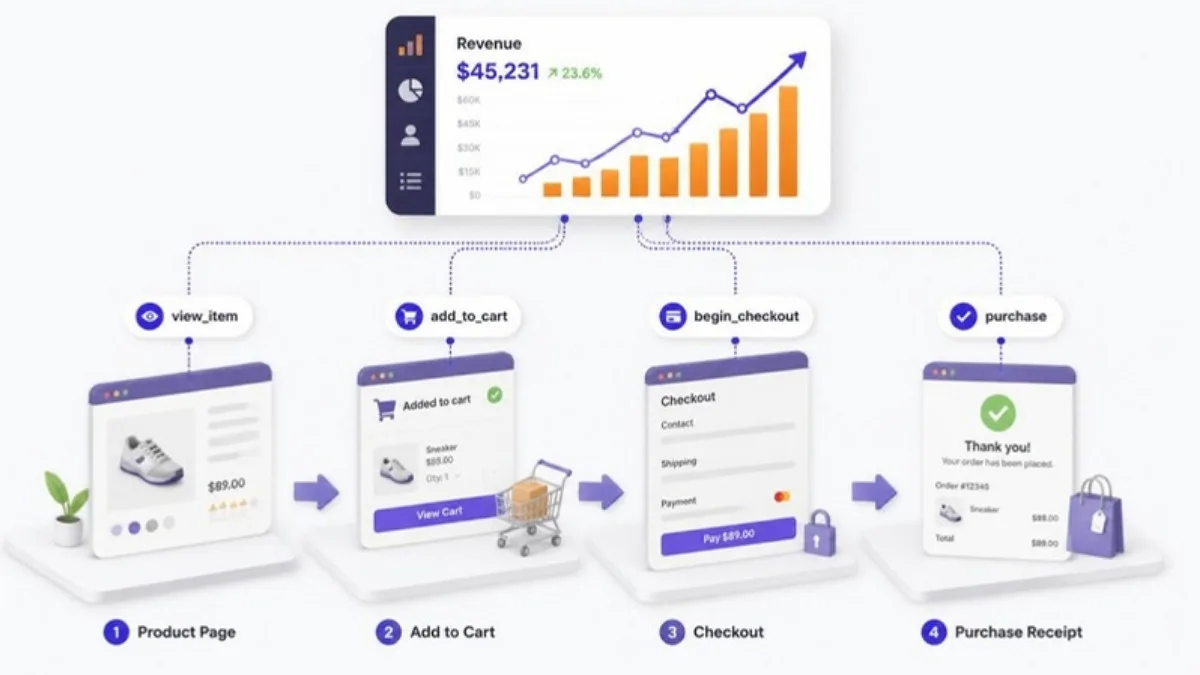
To track WooCommerce e-commerce in GA4, push the standard GA4 e-commerce events (view_item, add_to_cart, begin_checkout and purchase) to the data layer, usually with a data layer plugin, then fire GA4 event tags in Google Tag Manager that read the items, value and transaction ID. Test with GTM Preview and DebugView and compare GA4 revenue with WooCommerce orders.
- Track view_item, add_to_cart, begin_checkout, purchase.
- Use a data layer plugin to output e-commerce data.
- Always send transaction_id, value and currency on purchase.
- Prevent duplicates when customers reload the thank-you page.
- Compare GA4 revenue with WooCommerce weekly.
The Events You Need
| GA4 event | WooCommerce moment |
|---|---|
| view_item_list | Shop or category page |
| view_item | Single product page |
| add_to_cart | Product added to cart |
| begin_checkout | Checkout page opens |
| add_payment_info | Payment method selected |
| purchase | Order received page |
Step by Step Setup
Step 1: Output e-commerce data to the data layer
Install a reputable WooCommerce data layer plugin for Google Tag Manager. It pushes product names, prices, quantities and order totals into the data layer in the GA4 format.
Step 2: Create GA4 tags in GTM
Create one GA4 Event tag per event, with Send E-commerce data enabled from the data layer. Use Custom Event triggers that match the event names the plugin pushes.
Step 3: Check purchase parameters
The purchase event must include transaction_id, value, currency (for example BDT) and the items array. Without transaction_id, GA4 cannot remove duplicates.
Step 4: Test
Use GTM Preview and GA4 DebugView. Place a test order and confirm one purchase event with the correct total.
Step 5: Mark purchase as a key event
In GA4 Admin, make sure purchase is a key event. Then link GA4 to Google Ads if you want to use it for bidding, as I explain in my WhatsApp click tracking guide.
Common WooCommerce Tracking Problems
- Purchase fires again when the customer reloads the thank-you page.
- Cash on delivery orders tracked before they are confirmed.
- Prices sent with tax in some events and without tax in others.
- Two plugins sending GA4 events at the same time.
If you also run Meta Ads, the same data layer can feed your Pixel and Conversion API setup.
GA4 WooCommerce Tracking FAQ
How do I track WooCommerce purchases in GA4?
Push a GA4 purchase event with transaction ID, value, currency and items to the data layer on the order received page, and fire a GA4 event tag in Google Tag Manager.
Do I need a plugin for WooCommerce GA4 tracking?
A data layer plugin makes it much easier because it outputs all product and order data in the GA4 format.
Why is GA4 revenue different from WooCommerce?
Common reasons are missing purchases due to blocked tracking, duplicate purchases, refunds, and tax or shipping differences.
Should I track cash on delivery orders?
Yes, but be aware some may be cancelled. Many stores also review confirmed orders separately.
How do I stop duplicate purchase events?
Always send a transaction_id and prevent the event from firing again on page reloads.
Final Thoughts
E-commerce tracking turns GA4 from a traffic counter into a sales tool. Use a solid data layer, fire clean GA4 events, test with a real order and compare with WooCommerce every week. For form-based businesses, see my GA4 form tracking guide.
Official Resources
Need help with GA4 e-commerce tracking?
I am Rubel Hasan Rokib, a data-driven digital marketer based in Bangladesh. Send me your website or ad account details on WhatsApp and I will reply with a clear plan.